
TL;DR
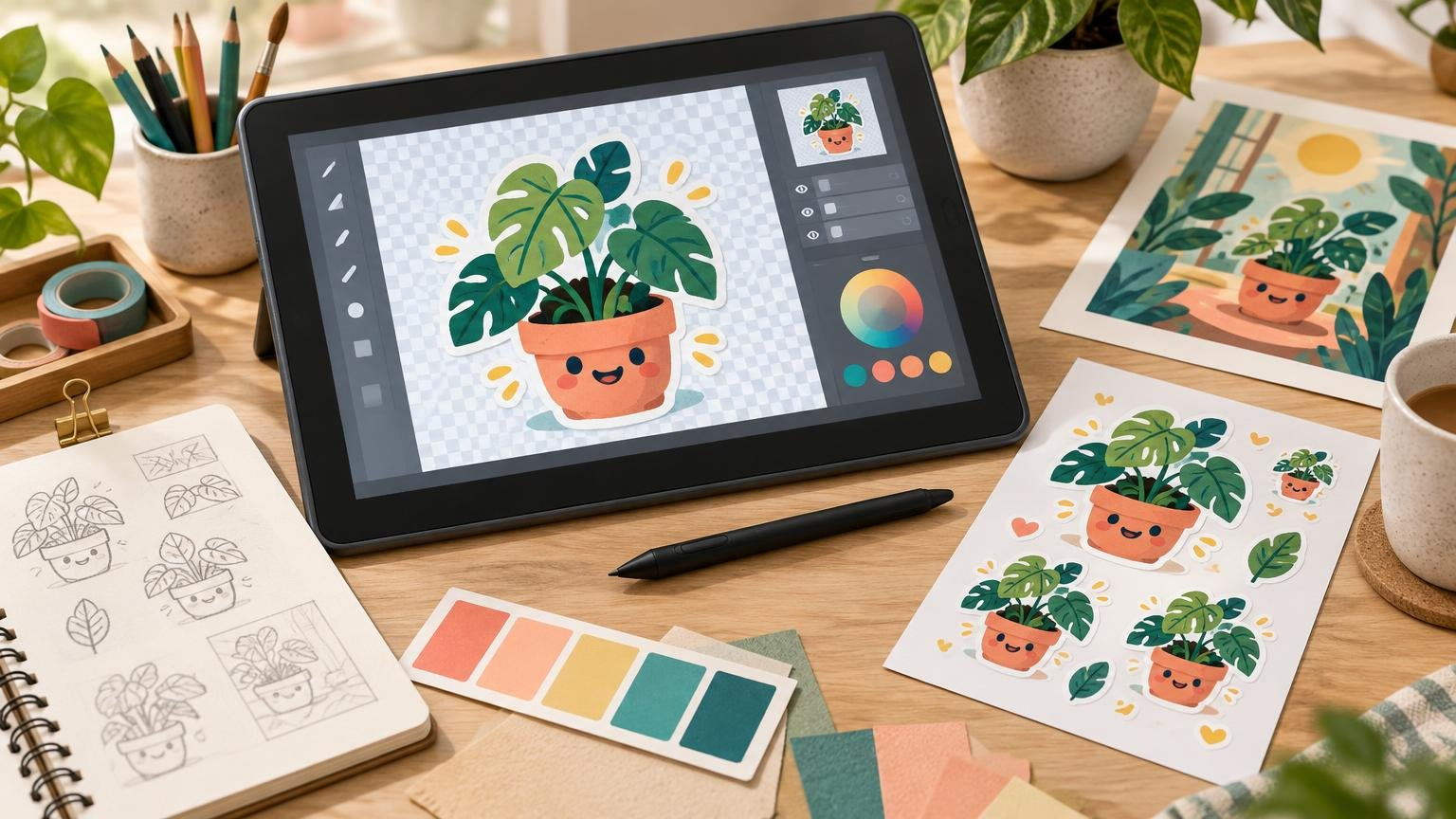
Choose your sticker software around the artwork and final production method. Procreate suits raster illustration, Illustrator offers precise vector construction and bleed controls, Canva makes simple layouts approachable, and Cricut Design Space prepares compatible artwork for machine cutting. Whichever tool you choose, keep an editable master and confirm the printer’s requirements for dimensions, resolution, bleed, cut lines, color, transparency, and export format before sending the file.
Choose the tool for the artwork—not the other way around
Digital sticker creation tools and editing apps do not all solve the same problem. A painting app may be excellent for textured characters but awkward for a sheet of precisely aligned labels. A vector editor may produce beautifully clean contours but feel needlessly complicated for a hand-painted sticker. Cutting-machine software adds another job: positioning printable artwork so a machine can find and cut it.
| Tool or category | Best suited to | Main file-prep concern |
|---|---|---|
| Procreate and raster drawing apps | Painted, textured, or hand-drawn illustrations | Canvas dimensions, effective resolution, and an early color-profile choice |
| Illustrator and vector editors | Logos, typography, clean contours, and scalable shapes | Bleed, path construction, effects, fonts, and export settings |
| Canva and layout editors | Simple sticker sheets, text-led designs, and quick compositions | Element resolution, margins, bleed, and PDF export options |
| Cricut Design Space | Preparing compatible art for Print Then Cut | Background cleanup, cut preview, print scaling, and alignment |
| Commercial printer workflow | Finished artwork being ordered as physical stickers | The provider’s template, cut-line, safe-area, color, and file rules |
Raster drawing apps: strong for illustrated stickers
Raster apps build artwork from pixels. They are a natural choice for painted shading, grain, soft brushes, and hand-drawn linework, but the canvas must contain enough pixels for the intended physical size. An image 1,800 pixels wide provides 300 pixels per inch at 6 inches wide, but only 150 pixels per inch at 12 inches wide. Enlarging the print does not create new detail.
Procreate supports sRGB, Display P3, generic CMYK, and imported RGB or CMYK ICC profiles. Its documentation also says an artwork’s color profile cannot be changed after that artwork is created, so the profile is an early project decision rather than a final export switch. Review the current Procreate color-profile documentation before creating the canvas.
Keep the layered original even if the printer eventually wants a flattened file. That master lets you repair an edge, enlarge a background, simplify a shadow, or export a different version without painting the design again.
Vector editors: best for clean contours and flexible sizing
Vector artwork describes shapes mathematically, so a simple logo, outline, or typographic design can be resized without the same pixelation risk as raster art. Placed photographs, brush textures, and raster effects inside a vector document still have resolution limits, however. The application does not turn every imported element into a true vector.
Illustrator is especially useful when you need controlled paths, separate production layers, or a complete sheet layout. Adobe defines bleed as artwork extending beyond the final trim boundary and provides document bleed settings, printer marks, and an option to use the document’s bleed values. Adobe also advises getting the required bleed from the print shop. Adobe’s guide to printer marks and bleed explains the relevant controls.
This distinction matters for stickers: a document bleed boundary, a contour-cut path, and a safe area are not interchangeable. One controls artwork beyond an edge, one indicates where a cut should occur, and one keeps important details away from production variation. For a broader comparison, see raster versus vector artwork for stickers and print.
Canva: useful for accessible layouts
Canva can be practical for arranging simple sticker sheets, combining text with graphics, or preparing a design when full vector-path editing is unnecessary. Canva offers margins, rulers, guides, bleed display, crop marks, and print-proofing features. Crop marks are available in PDF exports, and PDF Print can include crop marks and bleed. Canva’s margins and bleed instructions show the current controls.
Canva describes a standard 0.125-inch bleed per side for applicable trimmed products, but it also warns that outside printers can specify something different. Treat that value as a workflow option, not a universal sticker rule. A printer asking for a custom contour or a specific template should take priority.
Cricut Design Space: preparation for Print Then Cut
Cricut Design Space accepts PNG, JPG, GIF, and BMP raster uploads. During upload, artwork can be saved as a cut image or a Print Then Cut image, with background-removal and cut-preview controls available in the workflow. Cricut’s image-upload documentation provides the current steps.
For Print Then Cut, the artwork is printed with an inkjet printer and then contour-cut by the machine. Cricut cautions against fit-to-page, page scaling, edge printing, or centering because those changes can interfere with cut alignment. A print that looks visually centered can therefore still fail as a production sheet if the printer driver moved or resized the registration layout.
Prepare the file for its actual destination
Do not export one file and assume it can serve every audience. An editable source file, a digital sticker download, a cutting-machine file, and a commercial print submission are different deliverables. Keep the editable master, export specifically for the promised use, and test the delivered file where possible. If you sell downloads, state whether buyers receive individual digital assets, printable sheets, cut files, or physical stickers.
PNG is often appropriate for a single raster illustration that needs transparent surrounding areas, provided the destination accepts it. PDF is often better for a completed layout containing text, vectors, multiple elements, or precise positioning. The printer’s current upload instructions still control the choice; the PDF versus PNG printing guide examines the tradeoffs in more detail.
Transparency requires particular care. Transparent pixels in a PNG can remove the rectangular background around a design, but they do not tell a printer that you want clear sticker material or define where white ink should be printed. Those are production decisions that must be communicated through the provider’s ordering and artwork workflow.
Check provider-specific rules before ordering
If the next step is physical production, CustomStickers custom sticker and label printing is one route for turning prepared artwork into finished pieces. Its published artwork guidance recommends 300 ppi at final size and a finest line weight of 0.5 point for its own service. It also provides separate spacing instructions for full-bleed and bordered designs. These are provider-specific requirements, not universal values for every printer.
The same caution applies to color. CustomStickers says it accepts RGB or CMYK artwork but typically recommends RGB for its own setup. Another provider or print process may request something else. Follow the selected printer’s documented workflow rather than converting automatically because “print means CMYK.”
Before upload, review the complete sticker artwork preparation checklist and confirm the following:
- The document uses the intended final physical size.
- Raster elements have adequate effective resolution at that size.
- Important text and details sit safely inside the expected cut.
- Bleed or edge extension follows the provider’s template.
- Fonts, effects, transparency, and placed images export correctly.
- The chosen PNG, PDF, or other format matches the destination.
- The proof shows the expected cut shape, borders, orientation, and white-ink treatment.
The best app is the one that preserves your design through production
Start with the tool that suits how you create: a raster drawing app for painted artwork, a vector editor for scalable shapes, a layout tool for straightforward sheets, or cutting software for a machine-specific workflow. Then make file preparation a separate stage. Check size, resolution, color, transparency, bleed, safe areas, cut information, and export behavior against the actual destination. That final discipline—not the app’s popularity—is what helps an on-screen sticker survive its transition into a clean physical print.
References
- How to Create Stickers From Stock Images: Design and File-Prep Guide – Tutor Art
- Importing color profiles — Procreate for iPad Help Center
- Profiles — Procreate Handbook
- How to add printer’s marks and bleeds in Illustrator | Illustrator
- Use margins, bleed, rulers, and crop marks – Canva Help Center
- How to upload images into Design Space – Help Center
- Using Images in Design Space – Help Center
- How to Print Then Cut with Cricut Joy 2 – Help Center
- How to Sell Digital Sticker Designs — Design and File-Prep Guide – Tutor Art
- PDF vs PNG for Printing – Tutor Art
- Custom Artwork Stickers | Turn Your Art Into Stickers – CustomStickers.com