
TLDR
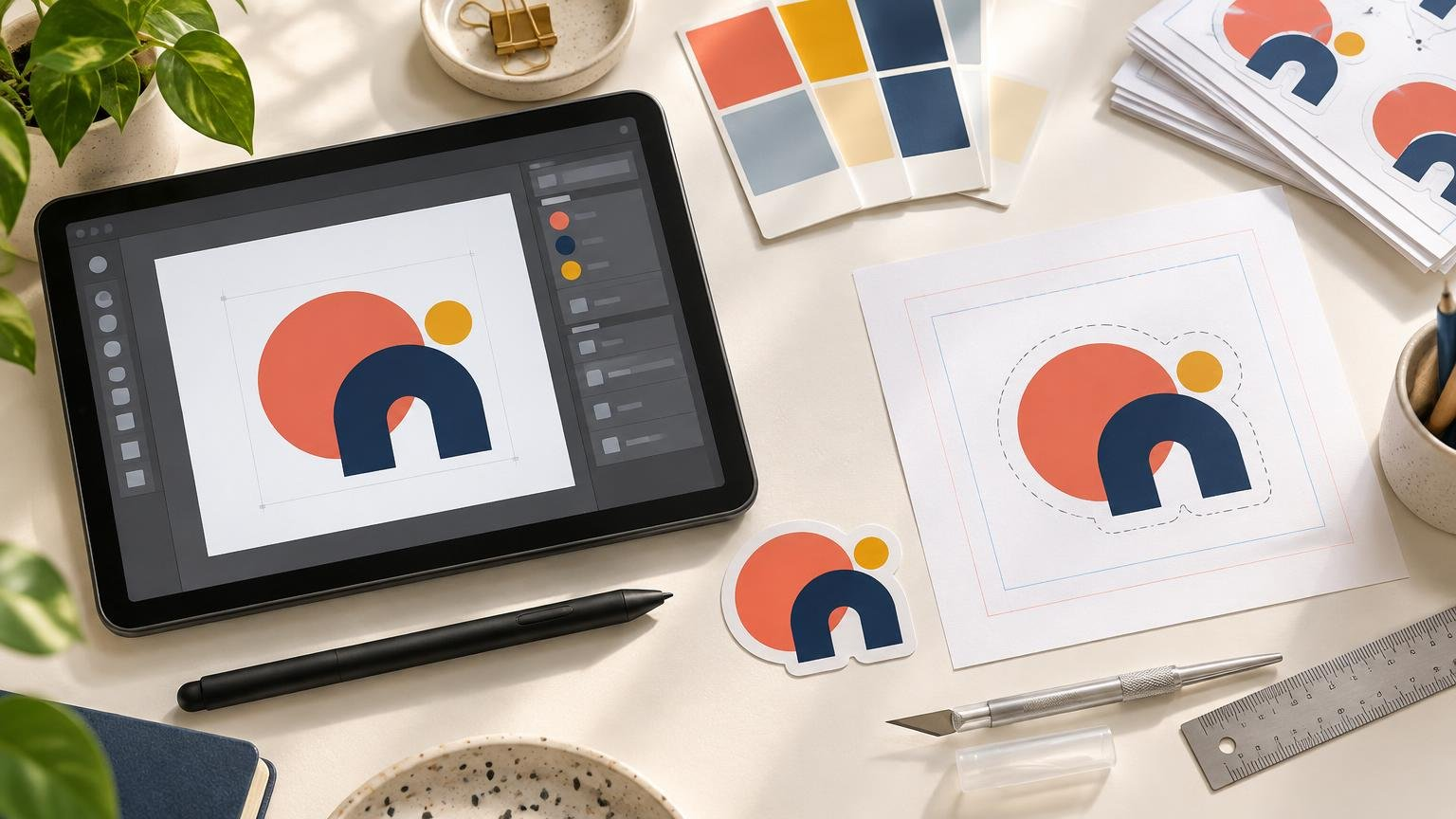
To learn how to turn a logo into a printed sticker, begin with the sticker’s intended use and physical size. Check whether the logo remains readable at that size, choose a suitable cut style and material, preserve an editable master file, and export a separate upload copy that follows your printer’s specifications. Do not approve the proof until you have checked the dimensions, cut path, border, colors, transparency, spelling, and quantity.
The difficult part of how to turn a logo into a printed sticker is rarely uploading the file. It is translating a logo designed for screens, signs, or letterheads into a small object with a physical edge. Fine text can close up, a transparent background can be misunderstood, and a border that looks balanced on screen can reveal normal cutting variation.
This guide focuses on that logo-specific transition. If you are starting with an illustration or painting instead, the broader artwork-to-sticker workflow covers additional cleanup considerations.
Start with the sticker’s job
Decide where the sticker will go before changing the artwork. A packaging seal, laptop giveaway, mailer insert, window graphic, and product label may all begin with the same logo, but they do not need the same size, material, finish, or adhesive behavior.
- Packaging: prioritize quick recognition and make sure required product information is handled separately where necessary.
- Giveaways: favor a shape and size that work on common personal items without making delicate logo details difficult to reproduce.
- Mailer inserts: consider whether the sticker must communicate the brand without surrounding packaging context.
- Windows or transparent surfaces: ask how clear material, white ink, and viewing direction are handled.
- Product labels: account for the container shape, surface texture, moisture, handling, and any information the label must carry.
Write down the intended surface, approximate finished size, viewing distance, and whether the sticker is decorative or informational. Those four decisions will make the later file-preparation choices much easier.
Run a logo preflight at the final size
Place the logo in a document at the sticker’s intended physical dimensions and view or print it at actual size. Do not judge a small sticker while it fills a large monitor. The screen enlargement can make tiny gaps and lettering appear safer than they will be in print.
Inspect the smallest text, thinnest lines, enclosed spaces inside letters, trademark symbols, gradients, shadows, and gaps between shapes. If an element becomes hard to understand at final size, make a sticker-specific logo variation rather than merely hoping the printer can preserve it. Possible changes include removing a tagline, increasing spacing, simplifying a shadow, or using the logo mark without the full wordmark.
Confirm that you own the logo or have permission to reproduce it. Access to an image online does not itself provide printing rights.
Prefer a vector master when one exists
Vector artwork describes shapes mathematically, so it can be resized without introducing pixel softness. Raster artwork is made from pixels, so its usable output size depends on its pixel dimensions and the final physical dimensions. The raster-versus-vector guide for logos and stickers explains that distinction in more detail.
An SVG, AI, EPS, or suitable PDF may preserve vector shapes, but the extension alone does not guarantee that everything inside is vector. A PDF can contain a low-resolution image, and an SVG can include an embedded raster graphic. Zoom in closely and inspect the original file rather than relying only on its name.
A PNG can still work when it has enough pixel information for the requested size. A heavily compressed JPG is less attractive for logos with sharp edges because compression artifacts may become visible around lettering and flat-color shapes. Ask the printer about its preferred format and resolution at the ordered dimensions instead of applying one universal export rule.
Choose a sticker format that suits the logo
| Format | Best fit | Design consequence |
|---|---|---|
| Die-cut | Distinctive logo silhouettes and promotional stickers | The outer sticker edge follows the artwork or an added border. |
| Kiss-cut | Easy peeling, sticker sheets, and delicate shapes | The sticker is cut through the adhesive layer while the backing remains around it. |
| Standard shape | Compact logos, seals, and packaging applications | A circle, square, oval, or rectangle becomes part of the composition. |
| Clear sticker | Windows or surfaces that should show around the design | Transparent areas, white ink, and surface color must be considered together. |
| Transfer-style decal | Separated lettering or simple marks without a surrounding field | Very small detached details may be unsuitable, depending on the provider. |
A die-cut sticker does not need to trace every tiny indentation in a logo. A smoother contour or border can create a sturdier, more intentional object. For a deeper comparison of backing and cutting behavior, see die-cut versus kiss-cut stickers.
CustomStickers.com states that its logo stickers are cut to the design by default unless another shape is requested, but that is a provider-specific ordering behavior rather than a universal rule. It also recommends high-resolution PNG or JPG files or vector SVG, AI, or EPS artwork for best results.
Plan the edge, border, bleed, and safe area
There are two common visual approaches. An intentional border places a visible field—often white—between the logo and the cut edge. A full-bleed treatment extends background artwork beyond the intended trim so it reaches the finished edge.
Bleed is extra artwork outside the trim boundary. It helps prevent an unintended unprinted sliver when cutting varies slightly. It is not the same as the safe area, which keeps important text and logo details comfortably inside the edge. Adobe’s guide to printer’s marks and bleeds demonstrates the distinction in a print-document workflow.
Do not assume a universal bleed or safe-area measurement. Sticker templates and cut processes vary. Follow the selected provider’s current template, and do not add crop marks unless its instructions request them. The broader print-design basics guide explains how bleed, margins, resolution, and file types affect physical output.
Borders deserve special attention. A very narrow border can look uneven if the cut shifts within normal production tolerance. If the border is part of the design, make it visually generous enough that small variation will not dominate the result. Alternatively, remove it and use a full-bleed background where the product supports that treatment.
Prepare a separate printer-ready file
Keep the editable source file intact. Duplicate it, then prepare the copy for upload. This preserves your ability to revise colors, text, dimensions, and cut treatments later.
- Set the artwork to the intended physical dimensions or clearly specify those dimensions in the order.
- Remove hidden experiments, unused objects, accidental backgrounds, and anything outside the intended production area unless it is required bleed.
- Check linked images and effects so nothing disappears when the file is opened elsewhere.
- Confirm how fonts should be supplied. Some workflows request outlined text or embedded fonts, but this is not a universal sticker requirement.
- Retain transparency only where it has a defined purpose, and inspect the file against both light and dark backgrounds.
- Export using a format and settings accepted by the chosen printer, then reopen the exported file to check it.
Do not convert text to outlines in your only editable file. Outlining changes letters into shapes and removes ordinary text editing. It can be useful in workflows that request it, but Adobe’s discussion of expanding strokes and outlining type is tied to a particular screen-print preparation workflow and should not be treated as a requirement for every sticker provider.
Understand transparency, clear material, and color
A transparent PNG means that parts of the image file contain no visible pixels. It does not mean the sticker will automatically be printed on clear material. The ordered product determines the substrate.
Clear stickers also require decisions about white ink. Colors printed on a transparent surface can interact with the color underneath, while white ink may be used beneath selected printed areas to make them more opaque. CustomStickers.com notes that clear-sticker appearance may differ from the screen design and describes white-ink treatment for printed areas. Confirm the exact behavior in the product proof because providers and products differ.
Likewise, do not convert a logo to CMYK automatically unless the printer requests a particular color mode or profile. A document’s color mode is not the same thing as the final output profile, and an unmanaged conversion can change brand colors without improving predictability. Supply spot-color references or brand color values when the provider accepts them, but treat the proof and current production instructions as the controlling guidance.
Choose material and finish for real use
White material usually provides a predictable opaque base for logo colors. Clear material lets the application surface participate in the design, which can be useful on windows or transparent packaging but makes white-ink handling more important.
Gloss can increase apparent contrast and saturation while also producing more reflections. Matte tends to reduce glare and can feel quieter, but fine dark details may appear less punchy depending on the material and printing process. Choose according to the logo and setting, not by treating either finish as universally better.
When you have finalized these decisions, custom sticker printing is the practical next stage. Check the exact product page for current material choices, accepted files, proofing terms, order quantities, and production timing before submitting the artwork.
Review the proof as a production document
The proof is your last opportunity to catch a wrong interpretation before production. Review it at actual size as well as enlarged. Enlargement helps expose path problems, while actual-size viewing reveals whether the logo is genuinely readable.
- Finished width and height
- Cut shape and corner treatment
- Border width and visual balance
- Spelling, punctuation, and trademark marks
- Placement of small text and fine lines
- Transparent versus printed areas
- White-ink treatment on clear products
- Orientation and viewing direction for windows
- Material, finish, quantity, and delivery timing
If the proof shows a cut path you did not expect, do not approve it and plan to fix the problem later. Ask what the line represents and request a revised proof. A screen mockup can communicate the general idea, but the production proof should control the final dimensions and cut treatment.
When home printing is useful
Home printing can be useful for checking scale, testing several logo variations, or making a very short indoor-use batch. Print a test sheet at actual size, cut out the samples, and place them on the intended object. This quickly reveals whether the logo feels too small, the border is distracting, or the tagline disappears.
For final pieces, follow the printer, cutter, ink, and adhesive-media manufacturers’ instructions. Compatibility and durability depend on the particular equipment and materials, so a test sheet cannot establish how a different professionally produced product will perform.
Final logo-sticker checklist
- The sticker has a defined use, surface, and finished size.
- The logo is readable when viewed or printed at actual size.
- An editable master file is preserved.
- Raster artwork has adequate pixel information for the ordered dimensions, or an appropriate vector file is available.
- The cut style, border, bleed, and safe area follow the chosen printer’s specifications.
- Transparency and clear-material behavior have not been confused.
- Material and finish suit the intended environment.
- The proof has been checked for size, cut path, color treatment, spelling, and quantity.
- You have permission to reproduce every logo, font, and graphic element in the file.
Common questions
Can I turn a PNG logo into a printed sticker?
Yes, provided the PNG contains enough pixel information for the intended physical size and the printer accepts it. Check it at actual output size and avoid enlarging a small web logo until its edges become visibly soft.
Do I need a transparent background for a die-cut sticker?
Not always. A transparent background can clarify which area is not part of the artwork, but some printers can create a cut path from other file types. An intentional colored or white border may also be part of the sticker. Follow the provider’s upload instructions and verify the interpretation in the proof.
How much bleed does a logo sticker need?
Use the amount stated in the selected printer’s current template or artwork specifications. Bleed requirements vary, and some contour-cut workflows are handled differently from rectangular full-bleed print pieces.
Should I convert fonts to outlines?
Only if the printer or file workflow calls for it. Keep a separate editable version with live text first. If you outline the lettering, inspect the result for changed strokes, missing counters, and altered appearance.
Make the logo work as a physical object
A successful logo sticker is not simply the original logo saved in a different format. It is a small physical version designed around viewing size, cut behavior, material, and the surface where it will live. Begin by testing legibility at the intended dimensions, then choose the sticker format and edge treatment. Prepare a separate upload file and treat the proof as the final production checkpoint. That workflow prevents more surprises than any single export preset.