
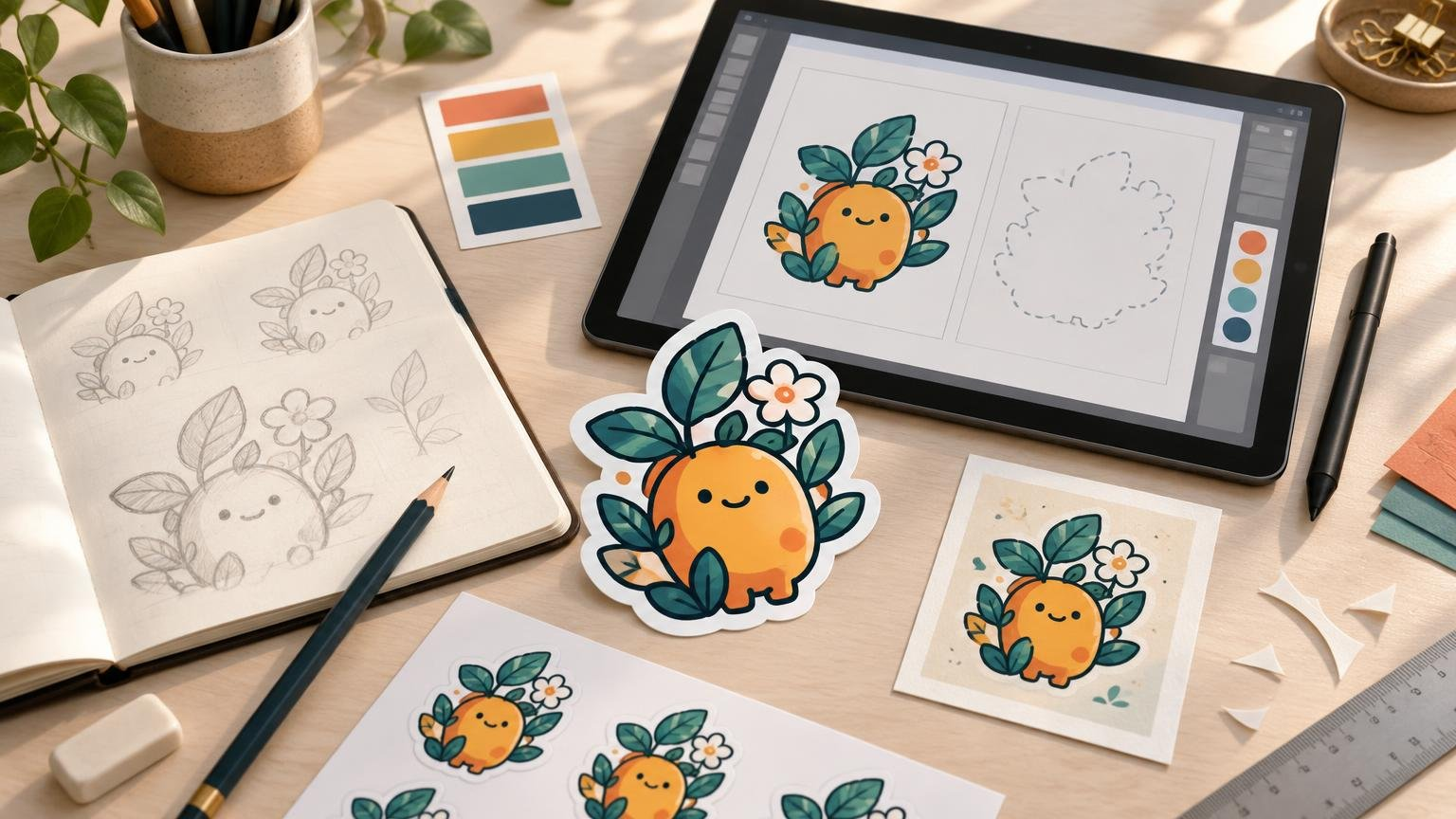
A successful sticker starts before you choose a brush, font, or color palette. You need to know where the sticker will be used, how large it will be, what shape it should have, and which details must survive at that size. From there, the beginner sticker design workflow is a controlled handoff: idea, artwork, final-size check, edge preparation, export, proof, and print.
The important shift is to stop treating printing as the last-minute act of uploading an image. Every early design choice affects the physical result. Thin lines can disappear, small text can become difficult to read, a narrow border can expose cutting variation, and a low-resolution painting can look soft when enlarged.
TL;DR: The beginner workflow in eight steps
- Define the sticker’s purpose, placement, size, shape, and viewing distance.
- Sketch a simple concept with one clear focal point.
- Choose raster, vector, or a combination based on the artwork.
- Build and inspect the design at its intended physical size.
- Prepare the outer edge, bleed, safe area, and cutline according to the printer’s instructions.
- Check color, transparency, text, image resolution, and asset licensing.
- Export in a format accepted by the selected printer.
- Review the production proof at final size before approving the order.
1. Define the physical sticker before drawing it
Begin with the object, not the canvas. Is this a small packaging seal, a laptop illustration, a product label, a promotional logo, or a piece of outdoor gear decoration? The answer affects the dimensions, material, finish, shape, contrast, and amount of detail you can use.
Write down five decisions: intended use, final width and height, approximate viewing distance, desired cut shape, and likely surface. If you do not know the printer yet, mark material and finish as questions rather than making assumptions. Production requirements for cut tolerance, white ink, borders, file formats, and materials vary by provider.
A complex illustration that works at 4 inches wide may become visual confetti at 1 inch. Conversely, a simple mascot designed for a tiny sticker may look empty when enlarged. Check the composition at actual print size throughout the project instead of waiting until export.
2. Turn the idea into a clear sticker concept
Give the sticker one main job. It might identify a brand, make a joke, decorate an object, label a product, or showcase an illustration. A beginner design often becomes weaker when it tries to fit a character, slogan, URL, social handle, decorative border, and detailed background into one small shape.
Create several rough thumbnails before polishing anything. Explore the silhouette as well as the internal composition. A strong outer shape helps a die-cut sticker remain recognizable even from a distance. If you need a starting point, these sticker design ideas for artists, brands, and creators connect concepts to practical uses.
Once you select a direction, reduce the design to its essentials. Enlarge important facial features, strengthen contrast, simplify fragile details, and keep text comfortably readable. Zooming in may help you draw, but zooming out shows what the customer will actually receive.
3. Choose raster, vector, or a combined file
Raster artwork is built from pixels. It is a natural fit for photographs, digital paintings, shaded illustrations, scanned drawings, and textured work. Vector artwork describes shapes mathematically, making it useful for logos, typography, icons, simple color areas, borders, and cut paths. A sticker can combine raster artwork with a vector cutline.
| Artwork type | Usually suitable for | Main print checkpoint |
|---|---|---|
| Raster | Paintings, photos, textured or shaded illustrations | Enough pixels at the final physical size |
| Vector | Logos, lettering, icons and clean shapes | Correct paths, strokes, fonts and effects |
| Combined | Illustrations requiring a precise contour cut | Raster quality plus an unambiguous vector cutline |
Vector files can scale without the pixelation associated with raster images, but embedded photographs remain raster. Converting a low-resolution image into a vector document does not restore missing detail. For a deeper explanation, see raster versus vector for stickers and print design.
4. Build the artwork at final size
Final physical dimensions determine whether raster artwork contains enough information. For example, an image 1,800 pixels wide produces 300 pixels per inch when printed 6 inches wide, but only 150 pixels per inch when printed 12 inches wide. The pixel dimensions have not changed; the pixels are simply spread across twice the distance.
Ask the printer for its preferred effective resolution, then check the artwork at the intended output size. One provider may request 300 ppi for raster uploads, but that should not be treated as a universal recipe for every process or product. CustomStickers, for example, publishes a 300 ppi recommendation for raster files at final size.
Keep editable source files while working. Put artwork, text, background elements, and any cutline on clearly named layers. Preserve live vector shapes where practical, and avoid repeatedly resizing or resaving compressed raster images. If your app choice is still undecided, compare digital sticker creation tools and editing apps by drawing, editing, cutting, and export needs.
5. Prepare the edge: bleed, safe area, and cutline
These three terms do different jobs. Bleed extends artwork beyond the final trim boundary so minor cutting variation does not reveal an unintended white edge. The safe area keeps text, faces, logos, and other critical details comfortably inside the edge. A cutline tells the production workflow where the sticker should be cut. Adobe’s guide to printer marks and bleed explains the purpose of bleed and advises confirming the required amount with the print provider.
For a full-bleed design, continue the background color or image beyond the intended edge. Do not stretch only the outermost pixels, because that can create a visible distorted rim. Extend or redraw the artwork naturally where possible.
Borders require special care. A very narrow border can look uneven when the real cut shifts slightly within production tolerance. Either make the border visually generous or consider removing it. Keep important content away from the edge even when the art itself extends through the bleed.
Some printers create cutlines automatically, while others accept or require customer-supplied paths. CustomStickers states that it can add a cutline and asks customers supplying an Illustrator cutline to separate Artwork and Cut Line layers. Its published border and full-bleed measurements are provider-specific, not general rules for every sticker printer. For more edge-preparation detail, use this sticker artwork preparation guide.
6. Check color, transparency, text, and fine detail
Do not automatically convert every sticker file to CMYK. First read the selected printer’s color instructions. Some workflows request CMYK, some accept either mode, and some recommend RGB for a particular printing system. CustomStickers states that it accepts RGB and CMYK and typically recommends RGB for its ten-ink setup, illustrating why provider guidance matters more than a blanket rule.
Remember that a bright screen is not a physical proof. Printed color is affected by the printing process, ink set, material, finish, and viewing light. Very dark shadows may lose separation, while subtle low-contrast details may become less obvious. Use any supplied profile or proofing instructions correctly, but do not assume an ordinary monitor preview guarantees an exact printed match.
Transparency also needs interpretation. A transparent PNG removes image areas from the submitted artwork, but it does not automatically request clear sticker material or define how white ink should be printed. Those are production choices to confirm with the provider.
Inspect tiny lettering, narrow gaps, and fine strokes at final size. If a detail matters, make it sturdy enough to survive printing and cutting. CustomStickers publishes 0.5 point as its finest recommended detail, but another printer may specify a different minimum.
7. Confirm that you can print the artwork
Use original artwork or assets licensed for the intended purpose. Buying or downloading an image does not necessarily grant permission to reproduce it on products for sale. The U.S. Copyright Office’s guidance for visual artists explains that original visual and graphic art generally receives protection once fixed in a tangible medium, while reproducing, distributing, adapting, or publicly displaying another owner’s work generally requires permission.
Ideas, common symbols, typography, and very simple works can receive different treatment, and trademarks raise separate questions. If your design begins with purchased photography, vectors, fonts, or clip art, read the relevant license for merchandise, resale, client work, and quantity limits. The workflow in creating stickers from stock images provides a more focused license-first approach.
8. Export for the printer you actually chose
Before exporting, open the printer’s current artwork instructions. Confirm the accepted file formats, color mode, resolution, bleed, safe area, cutline method, transparency handling, and font requirements. There is no single export recipe that works for every provider.
Use descriptive filenames and keep the editable master separate from the upload copy. If the printer accepts a PDF, verify that its export settings preserve the intended dimensions, vectors, images, and color behavior. If uploading a PNG, verify its pixel dimensions, physical output size, transparency, and whether the printer will create the cut path.
When you are ready to compare product options or submit artwork, CustomStickers custom stickers, labels, and vinyl printing provides material choices and artwork-preparation information. Follow the specifications for the particular product rather than copying settings from an unrelated order.
9. Treat the proof as a production checkpoint
A proof is not merely a formality or a chance to admire the design again. It is the handoff between your file and the printer’s interpretation. Check the displayed final dimensions, quantity, material, finish, orientation, cut shape, border, background, spelling, and placement.
Zoom in to inspect edge cleanup, then view the proof at approximate final size. Confirm that the cutline follows the intended silhouette and does not remove an important feature. Look for critical text or artwork sitting too close to the edge. TutorArt’s artwork-to-sticker guidance identifies these as key proof-review checks.
If anything is unclear, request a revision before approving production. Do not assume the operator understands which tiny irregularities are intentional. A short note such as “the white border should remain even around the entire character” is more useful than “please make it look right.”
Final preflight checklist
- The document and order use the same final width and height.
- Raster artwork has sufficient effective resolution at that size.
- The design remains clear and readable when viewed at actual size.
- Background artwork extends through the required bleed where applicable.
- Important content stays inside the safe area.
- The cutline or requested cut shape is unambiguous.
- Borders are wide enough to tolerate normal cutting variation.
- Color mode and export format match the printer’s current instructions.
- Transparency, clear material, and white-ink expectations are explicitly confirmed.
- Fonts and third-party artwork are licensed for the intended use.
- The proof has been checked for size, shape, spelling, placement, color expectations, and orientation.
Move from screen to sticker deliberately
The best beginner workflow is not the one with the most technical steps. It is the one that catches decisions while they are still easy to change. Define the physical sticker first, simplify the concept, build at final size, prepare the edge for the selected printer, and examine the proof as carefully as the artwork. That sequence gives your design a much better chance of retaining its clarity, character, and intended shape when it leaves the screen.
References
- Add printer marks and bleeds | Illustrator
- How To Turn Your Artwork Into Stickers – Tutor Art
- Digital Sticker Creation Tools and Editing Apps — Design and File-Prep Guide – Tutor Art
- FAQ – CustomStickers.com
- Custom Vinyl Stickers | Waterproof and Durable – CustomStickers.com
- What Visual and Graphic Artists Should Know about Copyright | U.S. Copyright Office