
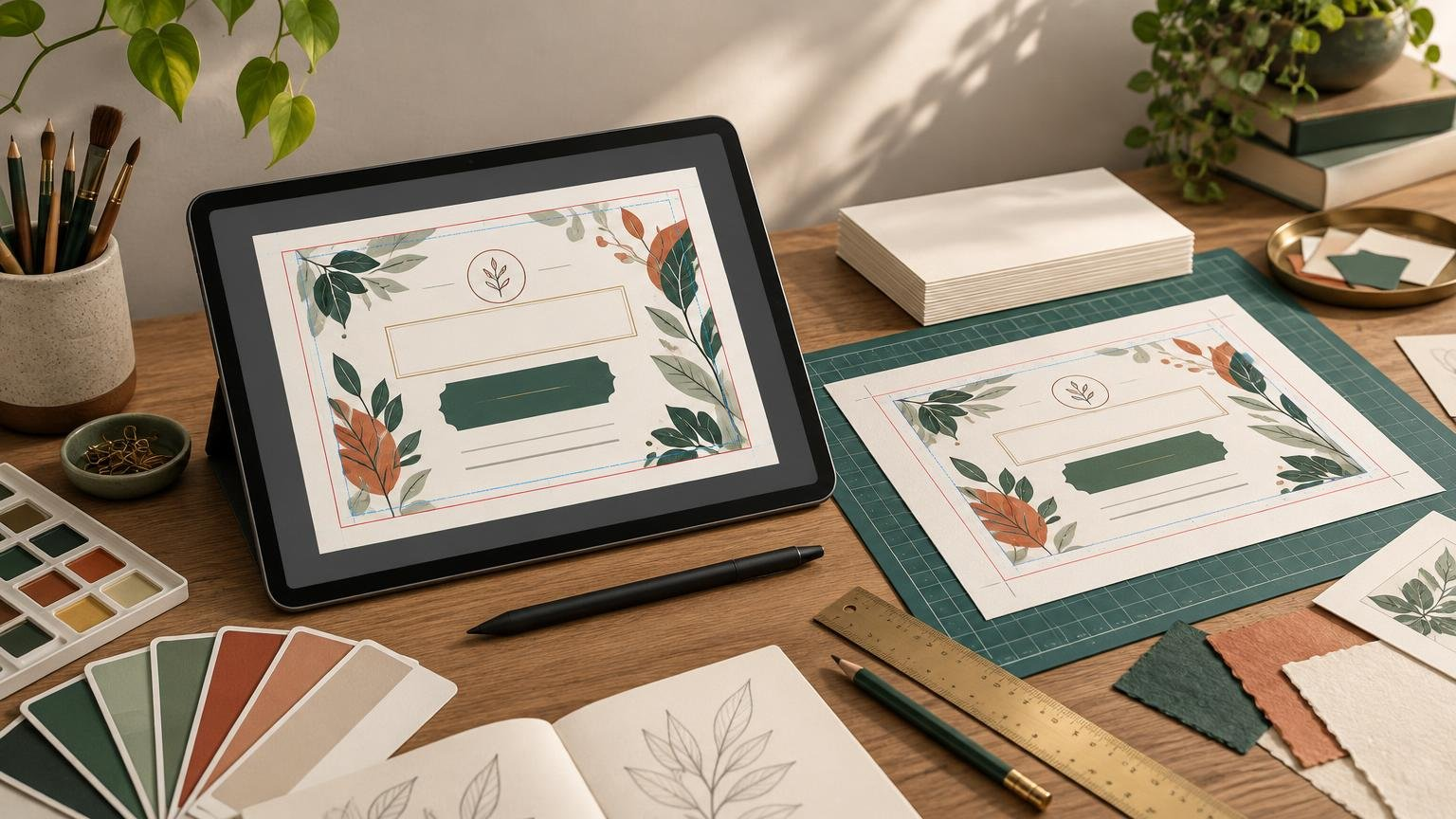
A successful branded gift certificate must do three jobs at once: look like your business, explain what the recipient can redeem, and survive printing without clipped text or unwanted white edges. Start with the redemption details and visual hierarchy, then adapt the document to your printer’s template rather than treating file preparation as an afterthought.
TL;DR
Choose the finished size and printer before finalizing the artwork. Give the brand, value, and redemption purpose clear visual priority; reserve space for administrative details and any required disclosures; extend backgrounds through the bleed; and keep essential content safely inside the trim. Export in the printer’s requested format and inspect a proof at actual size before ordering.
Plan the certificate before decorating it
First decide how the certificate will work. Is it worth a stated monetary amount, valid for one named service, or redeemable for a particular package? That decision affects the wording, recordkeeping, and potentially the legal rules that apply.
Build a content list before choosing fonts or illustrations. A practical certificate may need:
- Business name and logo
- A clear label such as “Gift Certificate”
- Monetary value or a precise description of the service
- Recipient and giver fields, if they will be personalized
- Certificate number, code, or other tracking identifier
- Redemption instructions and business contact information
- Issue date and any legally permissible expiration terms
- Restrictions or other required fine print
Adobe and Canva both identify values, brand information, contact details, and redemption or tracking information as common certificate components. Adobe also suggests moving secondary details to the reverse when a two-sided format is available.
Choose a format that fits the handoff. Adobe gives 3.5 × 2 inches as a wallet-sized example and 6 × 2.75 inches as a check-sized starting point, but these are examples rather than universal production standards. A larger card can support more generous typography, handwritten personalization, and clearer terms. A wallet-sized piece is convenient, but it leaves little room for ornamental type and lengthy conditions.
Create a hierarchy that still looks like your brand
The recipient should recognize the issuer and understand the certificate’s purpose immediately. Make the business name or logo, the certificate label, and the value or service the dominant elements. Contact information, codes, and terms can be quieter, but they must remain readable.
Use the same brand colors, type families, illustration style, and spacing logic found in your other materials. Consistency is more persuasive than filling every corner with logos. If your mark becomes muddy or illegible when reduced, review the principles behind designing a recognizable logo before locking the layout.
Limit the design to a small, purposeful type hierarchy. One display style and one highly readable supporting family are often enough. Avoid placing tiny text over photographs, textured artwork, or low-contrast colors. This is especially important for redemption terms: fine print that technically exists but cannot be read is not doing its job.
Think about how the certificate will be completed. A handwritten name needs an uncluttered light area. A serial number needs enough room for the longest expected code. If certificates will be generated digitally, test real names and codes rather than designing around tidy placeholders.
Separate the front, back, and administrative functions
Use the front for recognition and gifting: logo, value, service, recipient, and a concise message. Use the back for redemption instructions, contact details, restrictions, and tracking information. A two-sided design prevents the front from becoming a miniature terms sheet, but it does not make the reverse side optional during proofing.
Plan the business workflow alongside the artwork. Decide who issues each code, where it is recorded, how staff verify it, and how partial redemption is handled. Design cannot repair an ambiguous process. The certificate wording and the internal redemption procedure should describe the same offer.
Build the file around trim, bleed, and safe space
Trim is the intended finished edge. Bleed is extra artwork extending beyond that edge so small cutting variation does not reveal white slivers. A safe area is the interior buffer that protects essential text and logos from appearing cramped or being cut.
Canva’s documented default bleed is 0.125 inches per side, but Canva also tells users working with outside printers to check that provider’s requirements. Its bleed and crop-mark guidance explains that backgrounds should extend through the bleed while important content stays away from the edge. Your selected printer’s template takes precedence over a software default.
Borders deserve extra care. A narrow border close to the trim can expose ordinary cutting variation because one side may look heavier than another. Move the border inward, make it visually substantial, or use an edge-to-edge background instead.
Set the document to the required finished dimensions, then add the specified bleed. Extend only backgrounds, photographs, and noncritical decorative elements into it. Keep the logo, value, code, and terms inside the provider’s safe area. For a deeper explanation of these production zones, see print design basics for bleed, margins, resolution, and file types.
Prepare images, logos, colors, and fonts for output
Judge raster artwork at its final physical size. Enlarging a small image reduces its effective resolution and can make photographs, textures, or illustrations print softly. Vector logos and line art scale more reliably, although placed raster effects still depend on their underlying pixels. Raster and vector artwork behave differently in print, so inspect each element rather than trusting a sharp screen preview.
Ask the printer which color mode or output profile it expects. Do not convert colors blindly just because the piece will be printed. A bright RGB color may reproduce differently with ink or toner, while dark shadows can lose separation on some papers and processes. Review the provider’s proof and pay particular attention to brand colors, skin tones, gradients, and dark artwork.
Confirm how fonts should be supplied or embedded, whether transparency is accepted, and whether crop marks should be included. These are printer-specific export decisions, not universal settings. If the certificate is part of a coordinated stationery package, a card-focused producer such as printinvitations.com may also provide a useful starting point for discussing stock and production requirements.
Make disclosures readable and check the applicable rules
Gift-certificate rules can depend on how the product is structured and where it is sold. Under the federal Regulation E framework, a certificate issued in a specified monetary amount can fall within the covered definition, while a certificate redeemable only for a particular service or experience generally is treated differently. State requirements may add further restrictions.
For covered certificates, the Consumer Financial Protection Bureau requires applicable disclosures to be clear and conspicuous. Its gift card and gift certificate rule also warns that background graphics must not obscure required information. Do not hide terms in low-contrast text, shrink them to fit an overloaded layout, or assume separate packaging always solves the issue.
Expiration dates and fees require particular care. Do not add them simply because a template has those fields. Confirm the current federal, state, and local requirements for the specific offer and sales location, and obtain appropriate professional advice when the terms are uncertain.
Export and proof the finished certificate
Export using the printer’s requested file type, page order, color settings, bleed, and crop-mark instructions. Then inspect the exported file rather than relying only on the design canvas. Canva notes, for example, that crop marks appear in the exported PDF rather than in the editor.
Complete a final preflight at actual size:
- Confirm the finished dimensions and page order.
- Check that backgrounds reach the bleed edge.
- Keep essential content inside the safe area.
- Verify the offer, value, contact details, and redemption wording.
- Test the longest expected recipient name and tracking code.
- Inspect photographs and raster artwork at final output size.
- Confirm that small text remains readable against its background.
- Review font, transparency, color, and crop-mark requirements.
- Check the proof for unexpected substitutions, shifts, or clipped content.
The best branded gift certificate is not merely attractive on screen. It makes the offer immediately understandable, gives the business a workable redemption tool, and reaches the trimming stage with every important detail intact. Choose the production requirements early, design the hierarchy around real content, and treat the exported proof as the final design—not an administrative formality.